



Before you start, make sure your iPhone has the latest version of iOS. Then follow these steps:
- Open the home screen on your iPhone.
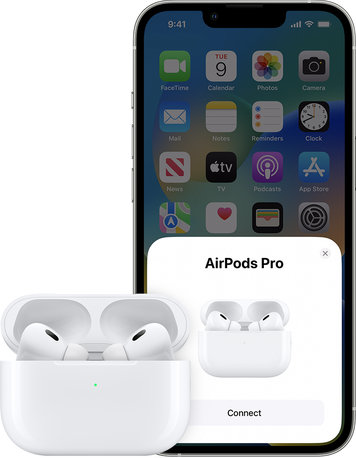
- Leave the AirPods in the charging case and open it near your iPhone. A setup animation will appear on your iPhone screen.
- Press the "Connect" button.
- If you have AirPods Pro (1st or 2nd generation) or AirPods (3rd generation), read the next three information screens.
- If you already have Siri set up on your iPhone and you are using AirPods Pro (1st or 2nd generation) or AirPods (2nd or 3rd generation), Siri will be ready to use with your AirPods. If Siri is not yet set up, the system will guide you through the setup process.
- Press "Done".
- If you are signed in to iCloud, your AirPods will automatically be set up on all other supported devices where you are signed in to iCloud with the same Apple ID.
Troubleshooting AirPods connection issues
If you encounter connection or setup problems with your AirPods, refer to the additional instructions. They can help you resolve common issues and ensure your earbuds function smoothly.
We hope this guide has helped you successfully connect and set up your AirPods. Now you can fully enjoy the quality sound and convenience of wireless use with your AirPods.
© Images: Apple, Unsplash

