



How to restart iPhone 16 – iPhone X
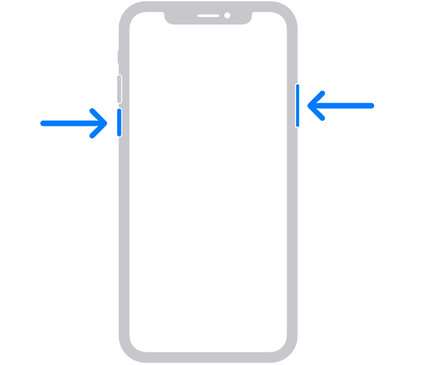
- Press and hold the side button (power button) and one of the volume buttons at the same time until the power off slider appears.
- Drag the slider to the right and wait for the iPhone to turn off completely.
- To turn the iPhone back on, press and hold the side button until the Apple logo appears.
Applies to:
- iPhone 16, iPhone 16e, iPhone 16 Pro, iPhone 16 Pro Max, iPhone 16 Plus
- iPhone 15, iPhone 15 Pro, iPhone 15 Pro Max, iPhone 15 Plus
- iPhone 14, iPhone 14 Pro, iPhone 14 Pro Max, iPhone 14 Plus
- iPhone 13, iPhone 13 mini, iPhone 13 Pro, iPhone 13 Pro Max
- iPhone 12, iPhone 12 mini, iPhone 12 Pro, iPhone 12 Pro Max
- iPhone 11, iPhone 11 Pro, iPhone 11 Pro Max
- iPhone X, iPhone XS, iPhone XS Max
How to restart iPhone 6, 7, 8, SE 2020, SE 2022
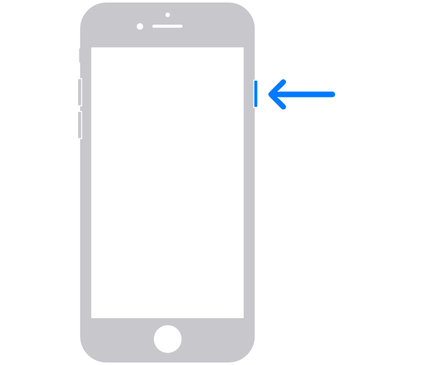
- Press and hold the side button (power button) until the power off slider appears on the screen.
- Drag the slider to the right and wait for the iPhone to turn off completely.
- To turn the iPhone back on, press and hold the side button until the Apple logo appears.
Applies to:
- iPhone SE 2020 (2nd generation), iPhone SE 2022 (3rd generation)
- iPhone 8, iPhone 8 Plus
- iPhone 7, iPhone 7 Plus
- iPhone 6, iPhone 6 Plus
- iPhone 6s, iPhone 6s Plus
How to restart iPhone SE (1st generation), 5 and earlier
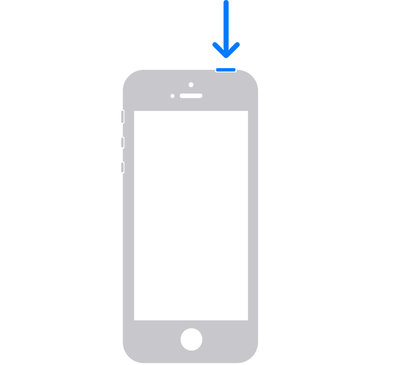
- Press and hold the top button (power button) until the power off slider appears.
- Drag the slider to the right and wait for the iPhone to turn off completely.
- To turn the iPhone back on, press and hold the top button until the Apple logo appears.
Applies to:
- iPhone SE (1st generation)
- iPhone 5, iPhone 5c, iPhone 5s
- iPhone 4s and older
iPhone won’t turn on or is the screen black?
If your iPhone is unresponsive, frozen, or the screen remains black, a standard restart may not be enough. In this case, you need to perform a force restart, which can reboot the device without using the power off slider. This process is safe, does not erase your data, and varies depending on your iPhone model.
Force restart iPhones with Face ID (iPhone X and later)
- Quickly press and release the volume up button.
- Quickly press and release the volume down button.
- Press and hold the side button (power button) until the Apple logo appears.
- The Apple logo may take longer than 10 seconds to appear.
Force restart iPhones with Home button
iPhone 7 and iPhone 7 Plus
- Press and hold the side button (power button) and the volume down button at the same time until the Apple logo appears.
- The Apple logo may take longer than 10 seconds to appear.
iPhone 6s, SE (1st gen.) and earlier
- Press and hold both the Home button and the side or top button (power button) until the Apple logo appears.
- The Apple logo may take longer than 10 seconds to appear.
If iPhone 7, 7 Plus, 6s, SE (1st generation) or earlier does not turn on, connect it to a charger and let it charge for at least 1 hour, then try turning it on again. If the low battery symbol appears, check the cable and adapter and continue charging for at least another 30 minutes or until the iPhone starts.
iPhone still won’t turn on even after a force restart and charging?
The issue may be hardware-related. Contact an authorized or professional service provider in your country, where technicians can perform diagnostics and carry out the necessary repair.
Images: Apple, AI

