



How to start recording?
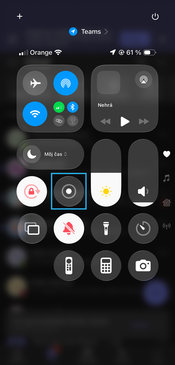
- Swipe down from the top-right corner of the screen.
- Tap the Record button (gray icon). A three-second countdown will begin.
- When the countdown ends, your device will automatically start recording the screen.
How to stop recording?
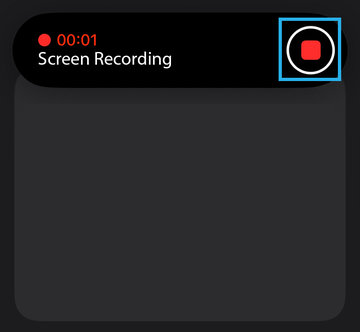
- Tap the Screen Recording icon at the top of the screen and select Stop.
- Or open the Control Center again and press the red Record button.
Where to find your recording?
After you stop recording, the video is automatically saved in the Photos app, where you can find it in your library.
Additional information
Some apps may not allow screen or audio recording.
Screen recording cannot be done at the same time as screen mirroring.
Don’t see the recording button?
If the Screen Recording button is missing from the Control Center, you can add it:
- Open Settings → Control Center.
- Tap the + next to Screen Recording.
- The button will then appear in Control Center and you’ll be able to use it.

