



Mac with Apple Silicon
Mac computers with Apple Silicon include all models with M-series chips, such as M1, M2, M3, or M4. If you are not sure which type of Mac you have, you can safely try the steps for a Mac with an Intel processor as well.
Starting from macOS Recovery (Mac with Apple Silicon)
- Make sure your Mac is turned off. If you can’t turn it off in the usual way, press and hold the power button for about ten seconds until it shuts down. All Mac computers have a power button. On models with Touch ID, press and hold the Touch ID button.
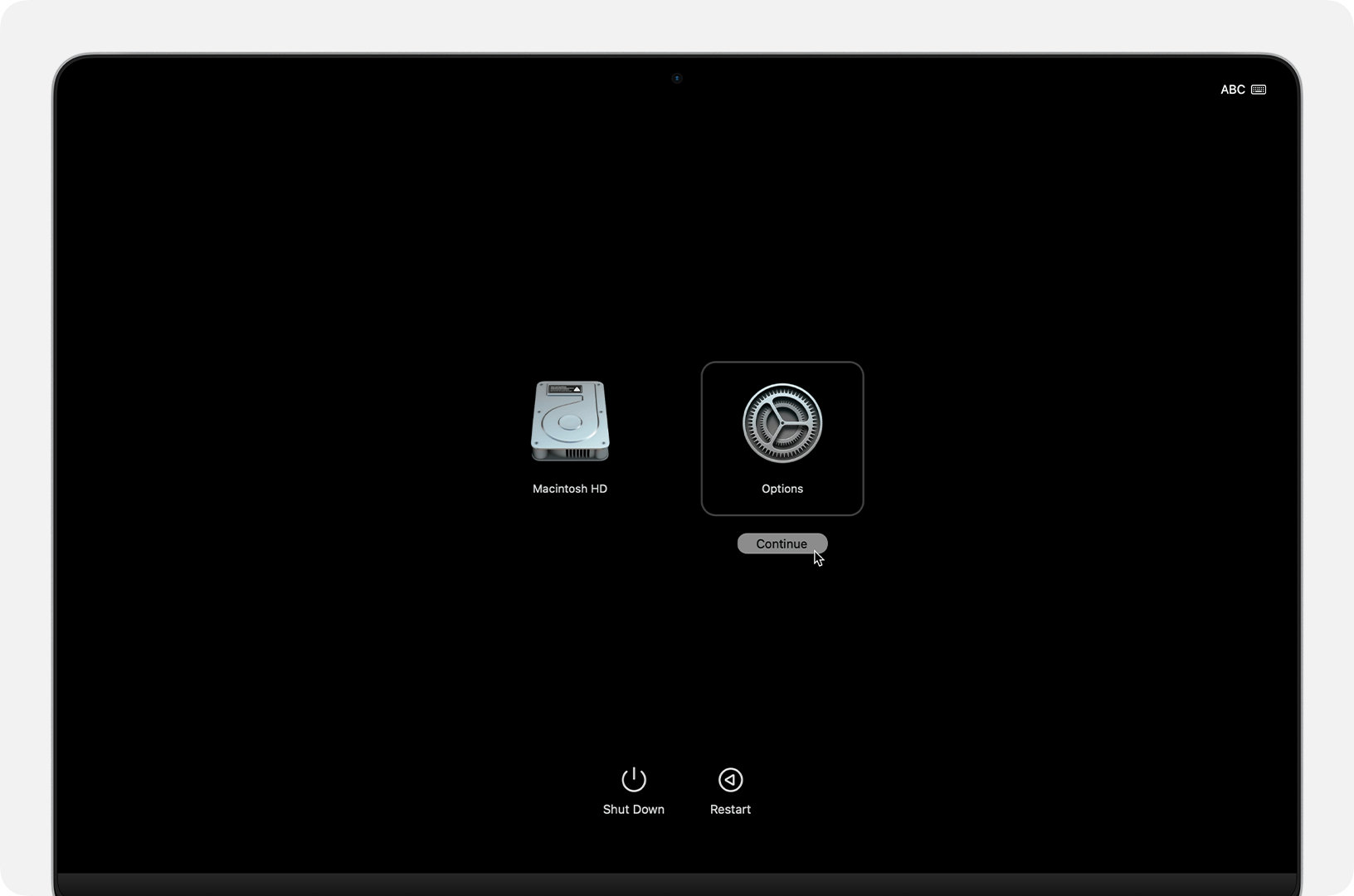
- Then press and hold the power button again until you see the message “Loading startup options” or the Options icon. Release the button at that point.
- Click Options, then click Continue.
- If prompted to select a recovery partition, choose your startup disk, such as Macintosh HD, and continue.
- If prompted to enter a user password you know, select that user, click Next, and enter the password.
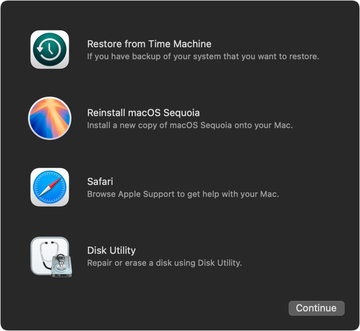
- Once Recovery starts successfully, you’ll see a window with available tools. You can restore from a Time Machine backup, reinstall macOS, repair or erase a disk using Disk Utility, or use other tools available in the menu bar.
- When you’re done, you can restart or shut down your Mac from the Apple menu.
If your Mac stops at another screen during startup, such as a blank screen or an exclamation mark in a circle, see the guide on what to do if your Mac doesn’t start up fully.
Mac with Intel Processor
If your Mac does not have an Apple Silicon chip, it is an Intel-based model. If you are unsure which type of Mac you have, you can safely try the steps for a Mac with Apple Silicon as well.
Starting from macOS Recovery (Mac with Intel Processor)
- In this case as well, it’s important to turn off your computer first. If you can’t shut it down normally, press and hold the power button for ten seconds.
- After the Mac is off, turn it on by pressing the power button briefly, then immediately press and hold the Command (⌘) and R keys. Keep holding them until you see the Apple logo or a spinning globe.
- If prompted to connect to Wi-Fi, select an available network or connect the computer using a network cable.
- Next, select your startup disk, such as Macintosh HD, and click Next.
- Continue and enter the user password if prompted by the system.
- Once macOS Recovery starts successfully, you’ll see a window with available tools, such as reinstalling macOS or restoring from a backup. Additional utilities, like Terminal, can be found in the menu bar at the top of the screen.
You can exit Recovery by clicking Restart or Shut Down from the Apple menu.
Unable to Start from Recovery (Mac with Intel Processor)?
The issue may be related to the Mac not recognizing keys pressed during startup.
-
If you’re using a Mac notebook, use its built-in keyboard instead of an external one.
-
If you’re using an external keyboard, it may take a moment for the Mac to recognize it. Some keyboards have an indicator light that briefly flashes when they’re ready to use, so it’s recommended to wait a few seconds before pressing the shortcut.
-
If you’re using a wireless keyboard, try connecting it with a cable or use another wired keyboard.
-
If you’re using a PC keyboard, especially one with a Windows logo, it’s recommended to use a keyboard designed for Mac.
If your Mac cannot start from the built-in Recovery system, it will automatically attempt to load macOS Recovery from the internet. You can identify this mode by the spinning globe on the screen. You can also start Internet Recovery manually by holding one of these combinations at startup instead of Command-R:
- Command-Option-R
- Shift-Command-Option-R
Each shortcut affects which version of macOS will be offered when reinstalling from Recovery.
If you see a warning symbol along with the globe, such as an exclamation mark inside a triangle, it means that Internet Recovery couldn’t be loaded—most often due to internet connection problems.

A screen with a warning symbol, as well as most numeric errors that may appear when attempting to start Internet Recovery, are usually related to an internet connection problem.
- Make sure your Mac is connected to the internet. If you’re using Wi-Fi, it may help to connect your computer directly via Ethernet.
- Try all available keyboard shortcuts: Command-R, Shift-Command-R, and Option-Shift-Command-R.
- Repeat the attempt after connecting to a different network or later—it may just be a temporary outage.
Other possible situations include the Mac stopping on a blank screen during startup or displaying a lock symbol. In such cases, see the guide on what to do if your Mac doesn’t start up fully.
- If your Mac is set to start Windows via Boot Camp, first change the startup disk to macOS, shut down your Mac, and try again.
If a startup error code appears, such as 1008F, check the recommended steps for resolving that error.
Need more help?
Let us know what issue you’re experiencing, and we’ll advise you on the next steps.
Images: apple.com

