

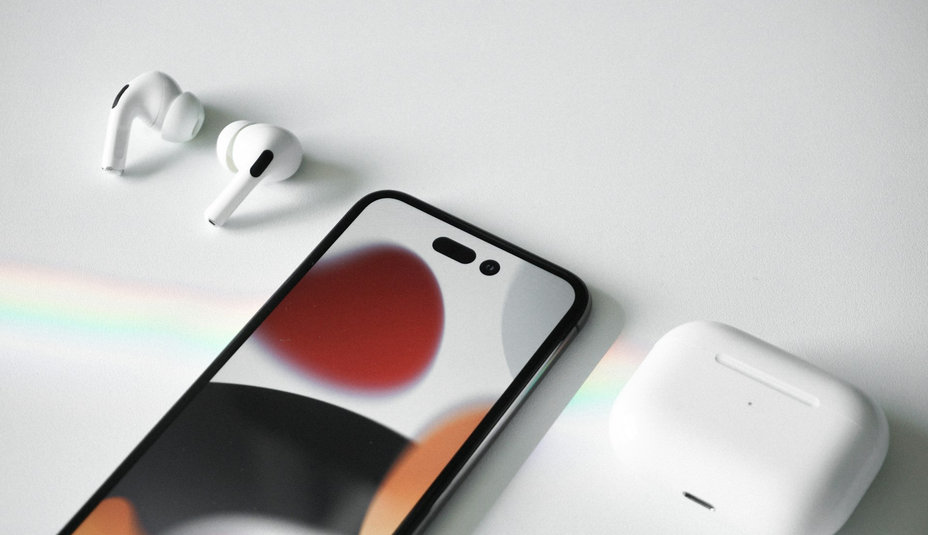

If you can't connect your AirPods to your iPhone or iPad
- Update Your Software: Make sure your iPhone or iPad has the latest version of iOS or iPadOS.
- Check Charging: Place both AirPods in the charging case and verify that they are charging.
- Turn On Bluetooth: Go to Settings > Bluetooth and ensure Bluetooth is turned on.
- Check Device Selection: If AirPods are connected, make sure they are set as the audio device. If they appear in the device list but won't connect, proceed to the next step.
- Reset the Charging Case:
- Close the lid of the charging case, wait 15 seconds, and open it again.
- Press and hold the setup button on the back of the charging case for 10 seconds. The status light on the front of the case should flash white, indicating that the AirPods are ready to connect.
- Connect AirPods to the Device: Hold the charging case with AirPods inside and the lid open next to your iPhone or iPad, and follow the on-screen instructions on your iPhone or iPad.
- If AirPods Won't Connect: Reset the AirPods according to the instructions.
By following these steps, you should be able to resolve the connection issue and once again enjoy the convenience and quality of your wireless AirPods. If problems persist, a more thorough check or diagnostics of your devices may be necessary.
© Images: Unsplash

