



This procedure does not apply to Mac computers with an Apple Silicon chip. If you are using a Mac with Apple Silicon, follow the instructions for that type of device.
Before erasing your Mac
- If you plan to reset your Mac to its original factory settings – for example, before handing it over to a new owner – review the recommendations on what to do before selling, giving away, or trading in your device.
- Using macOS Monterey or later? In that case, instead of following the steps in this article, erase all content and settings, which is also ideal when preparing your Mac for sale or donation.
- Be sure to back up all important files, as erasing will permanently remove them from your computer.
Starting from macOS Recovery
To erase the startup disk using Disk Utility, you must first start your Mac from macOS Recovery or from another disk.
Erasing a disk in Disk Utility
- After macOS Recovery loads, you’ll see a window with available tools. Select Disk Utility and click Continue.
- In the sidebar, find and select the Macintosh HD disk. If you don’t see it, refer to the article If Macintosh HD doesn’t appear.
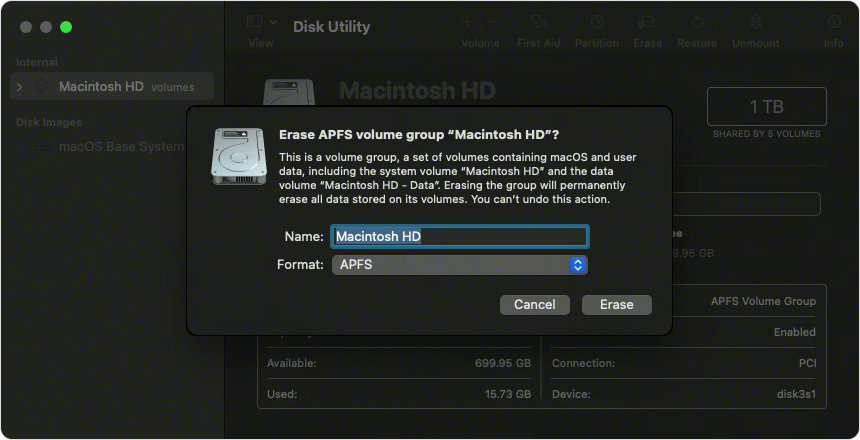
- Click the Erase button in the toolbar.
- Enter the following details:
- Name: Macintosh HD
- Format: APFS or Mac OS Extended (Journaled) – as recommended by Disk Utility.
- Confirm by clicking Erase Volume Group. If that option isn’t available, choose Erase instead.
- If prompted, sign in with your Apple ID credentials.
- (Optional) If you’ve previously created additional internal volumes, you can delete them the same way.
- When finished, close Disk Utility and return to the main Recovery window.
- To install macOS on the erased disk, choose Reinstall macOS, click Continue, and follow the on-screen instructions.
If Macintosh HD doesn’t appear
By default, the built-in startup disk should appear first in Disk Utility’s sidebar. It’s named Macintosh HD unless you’ve renamed it.
If you don’t see it:
- Open the Apple menu and choose Shut Down.
- Disconnect all unnecessary devices from your Mac.
- Turn it on and try again.
If the disk still doesn’t appear or you get an error during erasing, your Mac may require service.
Source: apple.com

